Creating a bracket
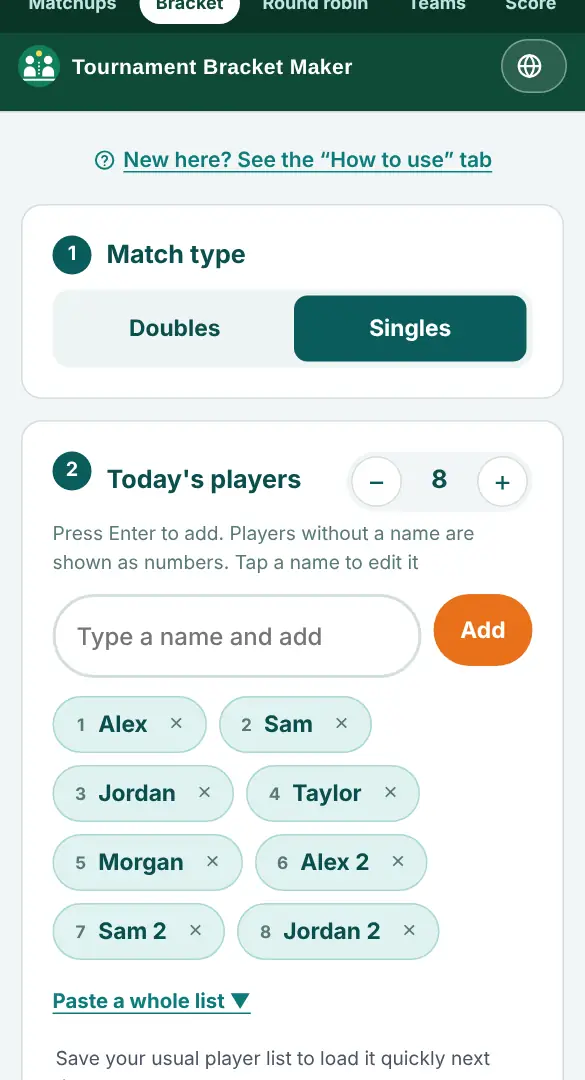
Enter the players
Enter one player (or team) per box. Choose “Doubles” at the top and pairs are made automatically from the names you enter one by one. You can fix only the pairs you want. You can also paste a whole list at once.
Choose the format
Choose "Knockout" or "Group stage → Knockout". For the group stage, set the number of groups and how many advance from each group. You can also choose whether to play a 3rd place match.
Choose the draw
With "Seed in the order entered", players higher on the list are treated as stronger, and seeds 1 and 2 cannot meet before the final. "Random draw" decides by lot. Byes are added automatically when the number of players is not 8, 16 and so on.
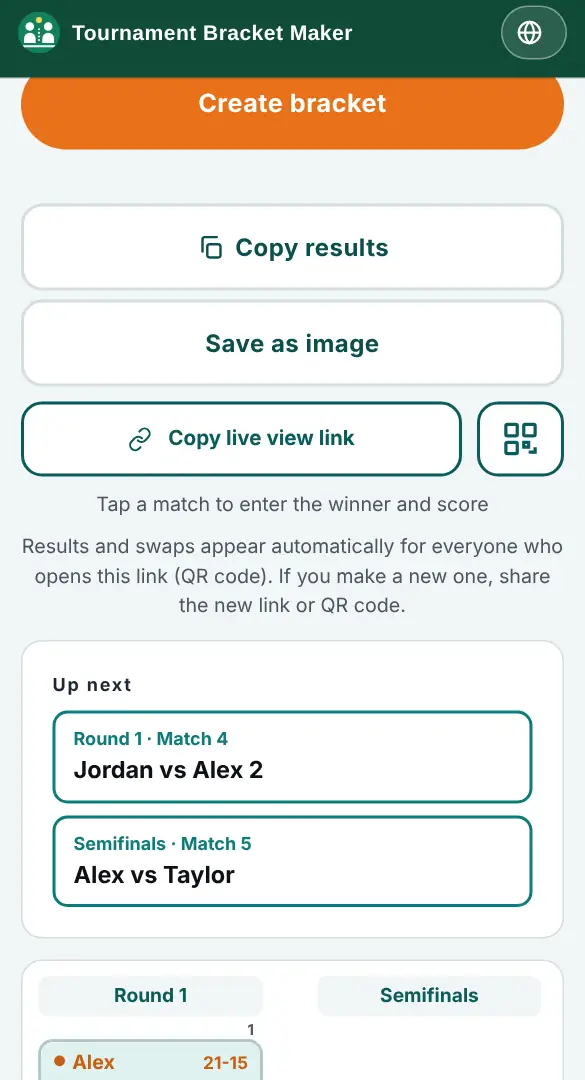
Tap the create button
The bracket appears in the "Bracket" tab.
Running the tournament
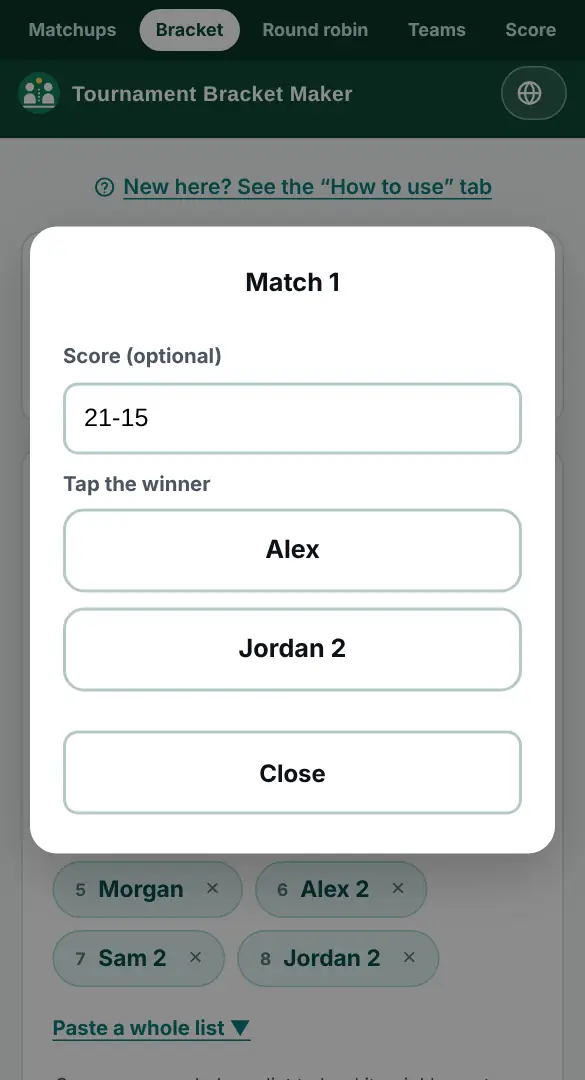
Enter the winner
Tap a match, then tap the winner. You can also enter the score (optional). The winner moves on to the next match automatically. If you make a mistake, tap the match again or use "Clear result".
Check the next matches
"Up next" shows matches whose players are decided but not yet played. Matches with a blue border can be played now.
Group standings
Groups are ranked by wins, then point difference (when scores are entered), then head-to-head. When all matches in a group are finished, the names go into the knockout stage.
Share with everyone (live view)
Send the live view link
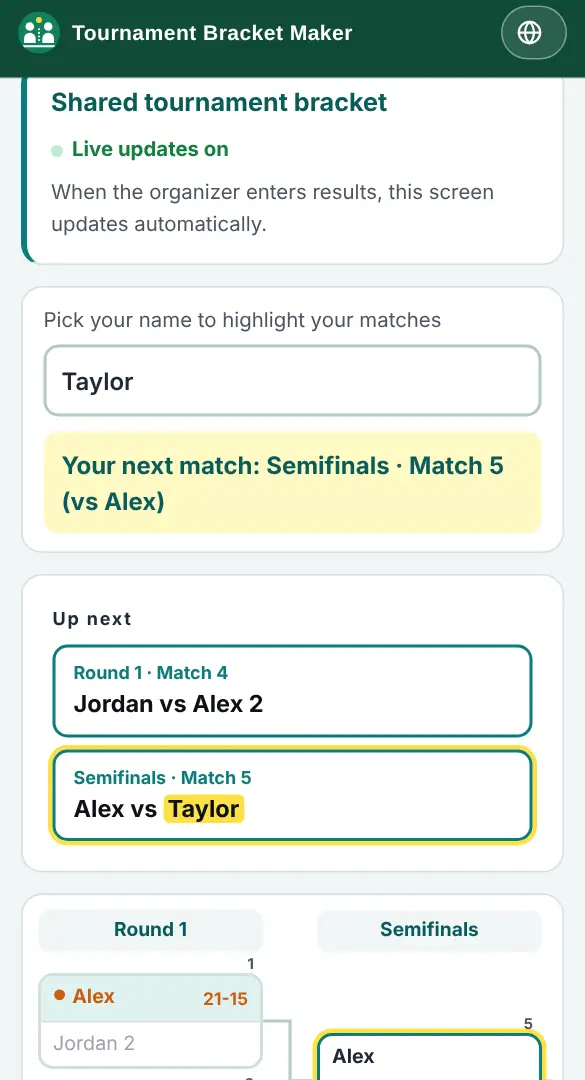
Tap "Copy live view link" and paste it into a group chat. The screen of everyone who opened the link updates automatically whenever the organizer enters a result.
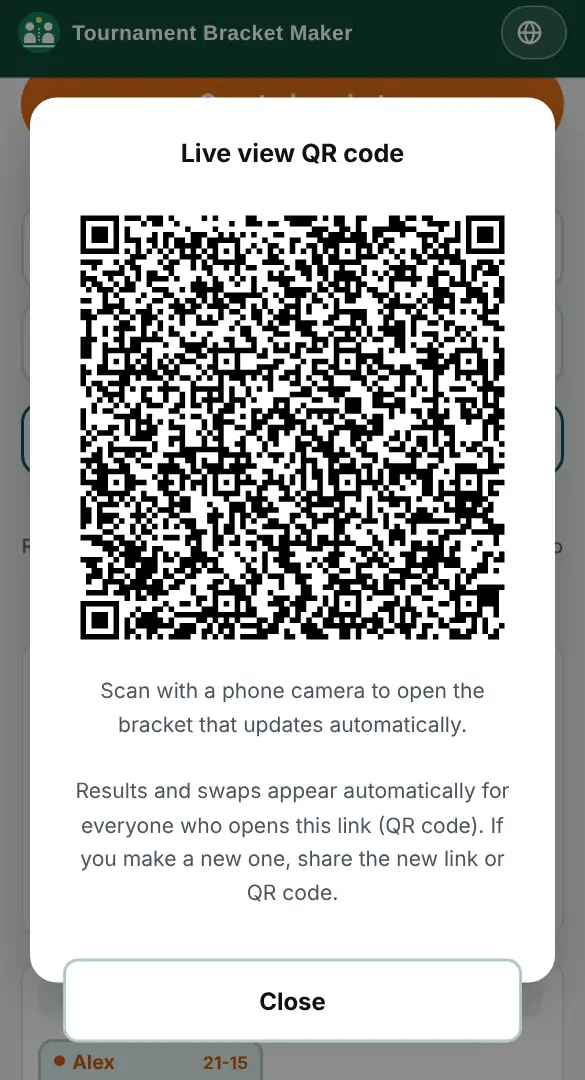
Show a QR code
Tap the QR code button next to the link button to show a QR code. Others can scan it at the venue with their phone camera.
Viewers pick their own name
People who open the link can pick their name to highlight their matches in yellow and see their next match and opponent. Only the organizer can enter results.
Copy the results
"Copy results" turns the match results into text that you can send to a group chat.
Set pairs and placement yourself
Doubles
Choose “Doubles” at the top and pairs are made automatically from the names you enter one by one. You can fix only the pairs you want.
Set seeds yourself (optional)
Chosen players (pairs) go to that seed. The rest are placed by the order setting above.
Set groups yourself (optional)
Chosen players (pairs) go to that group. The rest are assigned automatically.
⇄ Swap
Tap the two you want to swap, one after the other.
Using the tools together
Switch tools
The bar at the very top lets you switch between the four tools — matches, tournament, round robin and team splitter — at any time.
Send names to another tool
The buttons below the result open another tool without typing the names again. For example, you can turn team splitter results straight into a tournament bracket or a round robin.
Troubleshooting
The shared screen does not update
Check that the organizer’s device is online. Viewers can reopen the link to get the latest state. After changing the members, share the new link or QR code.
Frequently asked questions are on the tool page.
See the FAQIf this tool helped you, you can support it on Ko-fi. It keeps the tools free.
☕ Support on Ko-fiTournament Bracket Maker · tournament-bracket.matchgen.workers.dev